Connect Search Console so Narrative reads real impressions, clicks and ranking position for every page and query on your site
Google Search Console is the trusted source for where your site already ranks
and what people searched to find it. With it connected, Narrative reads
clicks, impressions and average position for every page and query, daily,
and uses them across the SEO module: to tell what is working from what is not,
to ground campaign recommendations in real demand, and to measure the pages
it publishes against the searches they were written for.
You need a Google account that is an owner or user of the Search
Console property for your site (full or restricted is fine; the connector
reads only).
Prefer a domain property (example.com) over a URL-prefix property
(https://www.example.com/). A domain property covers every subdomain and
protocol, so nothing Narrative crawls is missing from the numbers.
Allow pop-ups for app.yournarrative.ai. Google’s consent screen opens in a
small window.
Go to Personalize → Connectors and click Connect on the Google
Search Console card. The card reads Waiting for authorization until
you finish in Google.
2
Choose your Google account
Pick the account that has access to the Search Console property.
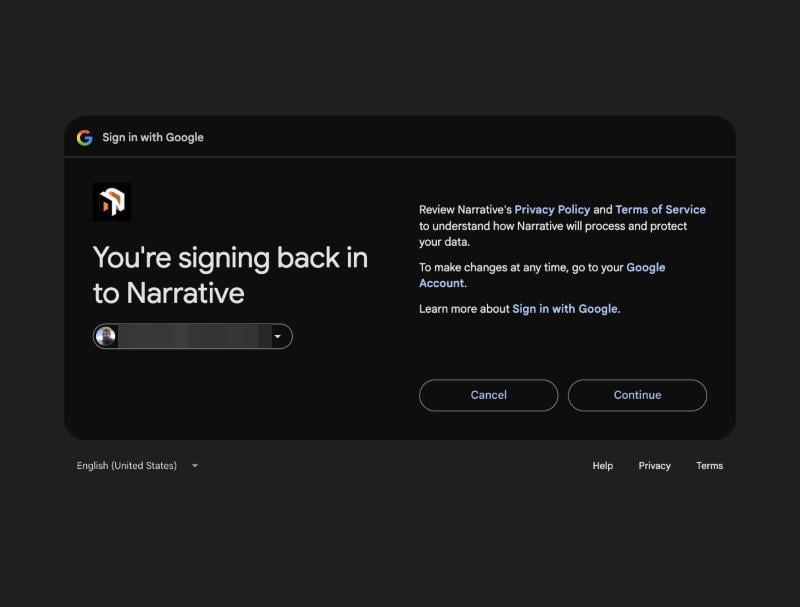
3
Confirm it is you
If you have connected a Google product before, Google confirms you are
signing back in. Click Continue.
4
Grant read-only access
Google lists the one permission Narrative asks for: View Search
Console data for your verified sites. Tick it and click Continue.
5
Pick the site
Back in Narrative, the card reads Finish setup. Click it, pick the
Search Console property to read, and click Connect. Domain
properties are listed as sc-domain:example.com.
The picker lists every property the Google account can see. This account has none, which is the message to expect if you signed in with the wrong account.
6
Wait for the first import
The card turns Connected. Narrative imports the last six months of
daily search data by page and query, then tops it up every day. Search
Console publishes data with a delay of two to three days, so the most
recent days always fill in later.
We did not find anything on this Google account for Google Search Console
means the account you chose is not an owner or user of any Search Console
property. Click Cancel, then Finish setup again with a different
account, or have a property owner add the account under Settings → Users
and permissions in Search Console.
Personalize → Connectors → Google Search Console → Manage → Disconnect
revokes the permission with Google and deletes the stored credential.
Imported search readings are kept so your history stays readable; reconnect
at any time to resume the daily import.
{"docsConfig":{"theme":"mint","$schema":"https://mintlify.com/docs.json","name":"Narrative Docs","colors":{"primary":"#e06a00","light":"#ff801f","dark":"#ff801f"},"logo":{"light":"https://mintcdn.com/narrative-22c775b1/JE23wnibORQQpxUI/logos/narrative-icon.png?fit=max\u0026auto=format\u0026n=JE23wnibORQQpxUI\u0026q=85\u0026s=5e3bdaeed1794cd14d4bbf5353f62bf9","dark":"https://mintcdn.com/narrative-22c775b1/JE23wnibORQQpxUI/logos/narrative-icon.png?fit=max\u0026auto=format\u0026n=JE23wnibORQQpxUI\u0026q=85\u0026s=5e3bdaeed1794cd14d4bbf5353f62bf9","href":"https://yournarrative.ai"},"favicon":"https://mintcdn.com/narrative-22c775b1/g2lgS4wvp_soxQsW/favicon.svg?fit=max\u0026auto=format\u0026n=g2lgS4wvp_soxQsW\u0026q=85\u0026s=476592194defbb4516cc2bad9756fac6","appearance":{"default":"dark"},"background":{"color":{"light":"#f7f8fa","dark":"#050505"}},"footer":{"socials":{"website":"https://www.yournarrative.ai"}},"seo":{"indexing":"navigable"},"fonts":{"heading":{"family":"Space Grotesk","source":"https://fonts.gstatic.com/s/spacegrotesk/v22/V8mDoQDjQSkFtoMM3T6r8E7mPbF4C_k3HqU.woff2","format":"woff2"},"body":{"family":"Inter"}},"styling":{"latex":false},"navigation":{"pages":[]}},"deployment":{"deploymentMetadataValue":{"subdomain":"narrative-22c775b1","hasAudioNarration":false,"actualSubdomain":"narrative-22c775b1","customDomains":["docs.yournarrative.ai"],"gitSource":{"type":"github","owner":"narrative-geo","repo":"narrative-docs","deployBranch":"main","contentDirectory":"","isPrivate":true,"mountPath":"","label":""},"chroma":{"latestBuiltDeploymentHistoryId":"6ae707568c40a3519a191144","collectionId":"6a49e57a-e5c4-4fcd-8aa6-48d7a0f4d642","liveDeploymentHistoryId":"6ae707568c40a3519a191144","schemaVersion":"v3"},"entitlements":{"AI_CHAT":{"status":"DISABLED"}},"buildId":"6ae70a69420faf70548d43ba","clientVersion":"0.0.4044","searchFilterCounts":[{"language":"default","tag":"Connectors","count":5},{"language":"default","tag":"Technical SEO","count":5},{"language":"default","tag":"Release notes","count":1},{"language":"default","tag":"Getting started","count":1}]},"assistantConfig":{"enableAskAiButton":false,"enableStarterQuestions":false,"enableContextualStarterQuestions":false,"enableAskAiSearchBar":true},"basePath":"","hasChatPermissions":false,"hasWebMcpPermissions":false,"toggles":[{"name":"kill-isr","enabled":true,"variant":{"name":"disabled","enabled":false,"feature_enabled":true},"impressionData":false},{"name":"agent-mintlify-slack","enabled":true,"variant":{"name":"disabled","enabled":false,"feature_enabled":true},"impressionData":false},{"name":"agent-integrations-settings","enabled":true,"variant":{"name":"disabled","enabled":false,"feature_enabled":true},"impressionData":false},{"name":"automations-pr-grouping","enabled":true,"variant":{"name":"disabled","enabled":false,"feature_enabled":true},"impressionData":false},{"name":"custom-prefix","enabled":true,"variant":{"name":"disabled","enabled":false,"feature_enabled":true},"impressionData":false},{"name":"analytics-v7","enabled":true,"variant":{"name":"disabled","enabled":false,"feature_enabled":true},"impressionData":false},{"name":"user-flows-analytics","enabled":true,"variant":{"name":"disabled","enabled":false,"feature_enabled":true},"impressionData":false},{"name":"no-publish-flow","enabled":true,"variant":{"name":"disabled","enabled":false,"feature_enabled":true},"impressionData":false},{"name":"workos-onboarding","enabled":true,"variant":{"name":"disabled","enabled":false,"feature_enabled":true},"impressionData":false},{"name":"llms-txt-v2","enabled":true,"variant":{"name":"disabled","enabled":false,"feature_enabled":true},"impressionData":false},{"name":"snapshot-serving-live","enabled":true,"variant":{"name":"disabled","enabled":false,"feature_enabled":true},"impressionData":false},{"name":"stripTemperatureMiddleware","enabled":true,"variant":{"name":"disabled","enabled":false,"feature_enabled":true},"impressionData":false},{"name":"support-platform-pylon-zendesk","enabled":true,"variant":{"name":"disabled","enabled":false,"feature_enabled":true},"impressionData":false},{"name":"snapshot-serving","enabled":true,"variant":{"name":"disabled","enabled":false,"feature_enabled":true},"impressionData":false},{"name":"instant-rollback","enabled":true,"variant":{"name":"disabled","enabled":false,"feature_enabled":true},"impressionData":false},{"name":"granular-notifications-server","enabled":true,"variant":{"name":"disabled","enabled":false,"feature_enabled":true},"impressionData":false},{"name":"granular-notifications","enabled":true,"variant":{"name":"disabled","enabled":false,"feature_enabled":true},"impressionData":false},{"name":"automations-fable","enabled":true,"variant":{"name":"disabled","enabled":false,"feature_enabled":true},"impressionData":false},{"name":"fixed-ai-action-pricing","enabled":true,"variant":{"name":"disabled","enabled":false,"feature_enabled":true},"impressionData":false},{"name":"automation-resolve-merge-conflict","enabled":true,"variant":{"name":"disabled","enabled":false,"feature_enabled":true},"impressionData":false},{"name":"scoped-publishing","enabled":true,"variant":{"name":"disabled","enabled":false,"feature_enabled":true},"impressionData":false},{"name":"mintql","enabled":true,"variant":{"name":"disabled","enabled":false,"feature_enabled":true},"impressionData":false},{"name":"page-level-analytics","enabled":true,"variant":{"name":"disabled","enabled":false,"feature_enabled":true},"impressionData":false},{"name":"editor-version-history-v2","enabled":true,"variant":{"name":"disabled","enabled":false,"feature_enabled":true},"impressionData":false},{"name":"billing-page-v2","enabled":true,"variant":{"name":"disabled","enabled":false,"feature_enabled":true},"impressionData":false},{"name":"full-page-search","enabled":true,"variant":{"name":"disabled","enabled":false,"feature_enabled":true},"impressionData":false},{"name":"workspace-projects","enabled":true,"variant":{"name":"disabled","enabled":false,"feature_enabled":true},"impressionData":false},{"name":"assistant-v5","enabled":true,"variant":{"name":"disabled","enabled":false,"feature_enabled":true},"impressionData":false},{"name":"byok-sep-25","enabled":true,"variant":{"name":"disabled","enabled":false,"feature_enabled":true},"impressionData":false},{"name":"fork-pr-previews","enabled":true,"variant":{"name":"disabled","enabled":false,"feature_enabled":true},"impressionData":false},{"name":"revalidation-jwt","enabled":true,"variant":{"name":"disabled","enabled":false,"feature_enabled":true},"impressionData":false},{"name":"vite-origin","enabled":true,"variant":{"name":"disabled","enabled":false,"feature_enabled":true},"impressionData":false},{"name":"billing-updated-9-15","enabled":true,"variant":{"name":"disabled","enabled":false,"feature_enabled":true},"impressionData":false},{"name":"workos-sso-scim","enabled":true,"variant":{"name":"disabled","enabled":false,"feature_enabled":true},"impressionData":false},{"name":"hobby-abuse-scan","enabled":true,"variant":{"name":"disabled","enabled":false,"feature_enabled":true},"impressionData":false},{"name":"dashboard-inbox","enabled":true,"variant":{"name":"disabled","enabled":false,"feature_enabled":true},"impressionData":false},{"name":"workos-signup","enabled":true,"variant":{"name":"disabled","enabled":false,"feature_enabled":true},"impressionData":false},{"name":"turbopuffer-dual-write","enabled":true,"variant":{"name":"disabled","enabled":false,"feature_enabled":true},"impressionData":false},{"name":"workos-enabled","enabled":true,"variant":{"name":"disabled","enabled":false,"feature_enabled":true},"impressionData":false},{"name":"approve-review-flow","enabled":true,"variant":{"name":"disabled","enabled":false,"feature_enabled":true},"impressionData":false},{"name":"sso-setup-deadline-banner","enabled":true,"variant":{"name":"disabled","enabled":false,"feature_enabled":true},"impressionData":false}],"googleFontsInlined":false},"customCss":[],"page":{"pagePath":"connectors/google-search-console","slug":"/connectors/google-search-console","pageMetadata":{"title":"Google Search Console","description":"Connect Search Console so Narrative reads real impressions, clicks and ranking position for every page and query on your site","href":"/connectors/google-search-console"},"description":{"compiledSource":"\"use strict\";\nconst {jsx: _jsx} = arguments[0];\nconst {useMDXComponents: _provideComponents} = arguments[0];\nfunction _createMdxContent(props) {\n const _components = {\n p: \"p\",\n ..._provideComponents(),\n ...props.components\n };\n return _jsx(_components.p, {\n children: \"Connect Search Console so Narrative reads real impressions, clicks and ranking position for every page and query on your site\"\n });\n}\nfunction MDXContent(props = {}) {\n const {wrapper: MDXLayout} = {\n ..._provideComponents(),\n ...props.components\n };\n return MDXLayout ? _jsx(MDXLayout, {\n ...props,\n children: _jsx(_createMdxContent, {\n ...props\n })\n }) : _createMdxContent(props);\n}\nreturn {\n default: MDXContent\n};\n","frontmatter":{},"scope":{}},"pageType":"default","mdx":{"mdxSource":{"compiledSource":"\"use strict\";const{Fragment:_Fragment,jsx:_jsx,jsxs:_jsxs}=arguments[0];const{useMDXComponents:_provideComponents}=arguments[0];function _createMdxContent(props){const _components={code:`code`,em:`em`,li:`li`,p:`p`,strong:`strong`,tbody:`tbody`,td:`td`,th:`th`,thead:`thead`,tr:`tr`,ul:`ul`,..._provideComponents(),...props.components},{Frame,Heading,OptimizedImage,Step,Steps,Table}=_components;if(!Frame)_missingMdxReference(`Frame`,true);if(!Heading)_missingMdxReference(`Heading`,true);if(!OptimizedImage)_missingMdxReference(`OptimizedImage`,true);if(!Step)_missingMdxReference(`Step`,true);if(!Steps)_missingMdxReference(`Steps`,true);if(!Table)_missingMdxReference(`Table`,true);return _jsxs(_Fragment,{children:[_jsx(_components.p,{children:`Google Search Console is the trusted source for where your site already ranks\nand what people searched to find it. With it connected, Narrative reads\nclicks, impressions and average position for every page and query, daily,\nand uses them across the SEO module: to tell what is working from what is not,\nto ground campaign recommendations in real demand, and to measure the pages\nit publishes against the searches they were written for.`}),`\n`,_jsx(Heading,{level:`2`,id:`before-you-start`,children:`Before you start`}),`\n`,_jsxs(_components.ul,{children:[`\n`,_jsxs(_components.li,{children:[`You need a Google account that is an `,_jsx(_components.strong,{children:`owner or user`}),` of the Search\nConsole property for your site (full or restricted is fine; the connector\nreads only).`]}),`\n`,_jsxs(_components.li,{children:[`Prefer a `,_jsx(_components.strong,{children:`domain property`}),` (`,_jsx(_components.code,{children:`example.com`}),`) over a URL-prefix property\n(`,_jsx(_components.code,{children:`https://www.example.com/`}),`). A domain property covers every subdomain and\nprotocol, so nothing Narrative crawls is missing from the numbers.`]}),`\n`,_jsxs(_components.li,{children:[`Allow pop-ups for `,_jsx(_components.code,{children:`app.yournarrative.ai`}),`. Google’s consent screen opens in a\nsmall window.`]}),`\n`]}),`\n`,_jsx(Heading,{level:`2`,id:`connect`,children:`Connect`}),`\n`,_jsxs(Steps,{children:[_jsxs(Step,{title:`Open Connectors`,children:[_jsxs(_components.p,{children:[`Go to `,_jsx(_components.strong,{children:`Personalize → Connectors`}),` and click `,_jsx(_components.strong,{children:`Connect`}),` on the Google\nSearch Console card. The card reads `,_jsx(_components.em,{children:`Waiting for authorization`}),` until\nyou finish in Google.`]}),_jsx(Frame,{children:_jsx(OptimizedImage,{src:`https://mintcdn.com/narrative-22c775b1/2qy9Q7JF03n1vhXt/images/connectors/gsc-waiting-for-authorization.png?fit=max\u0026auto=format\u0026n=2qy9Q7JF03n1vhXt\u0026q=85\u0026s=e0a1f42c4e22fddd6cbb22a713fe8c21`,alt:`The Connectors page with the Google Search Console card showing Waiting for authorization.`,\"data-og-width\":`800`,width:`800`,\"data-og-height\":`506`,height:`506`,\"data-path\":`images/connectors/gsc-waiting-for-authorization.png`,\"data-optimize\":`true`,\"data-opv\":`3`,srcset:`https://mintcdn.com/narrative-22c775b1/2qy9Q7JF03n1vhXt/images/connectors/gsc-waiting-for-authorization.png?w=280\u0026fit=max\u0026auto=format\u0026n=2qy9Q7JF03n1vhXt\u0026q=85\u0026s=9f9a706a2c410abe209dbc0a775e3db0 280w, https://mintcdn.com/narrative-22c775b1/2qy9Q7JF03n1vhXt/images/connectors/gsc-waiting-for-authorization.png?w=560\u0026fit=max\u0026auto=format\u0026n=2qy9Q7JF03n1vhXt\u0026q=85\u0026s=c1e0fc93ea3910a5c4d0d2277fcbe7c6 560w, https://mintcdn.com/narrative-22c775b1/2qy9Q7JF03n1vhXt/images/connectors/gsc-waiting-for-authorization.png?w=840\u0026fit=max\u0026auto=format\u0026n=2qy9Q7JF03n1vhXt\u0026q=85\u0026s=3d32db691b4d463ae2441763ea5c4018 840w, https://mintcdn.com/narrative-22c775b1/2qy9Q7JF03n1vhXt/images/connectors/gsc-waiting-for-authorization.png?w=1100\u0026fit=max\u0026auto=format\u0026n=2qy9Q7JF03n1vhXt\u0026q=85\u0026s=0474d7db554d74fb31aed8bd3d8d3d99 1100w, https://mintcdn.com/narrative-22c775b1/2qy9Q7JF03n1vhXt/images/connectors/gsc-waiting-for-authorization.png?w=1650\u0026fit=max\u0026auto=format\u0026n=2qy9Q7JF03n1vhXt\u0026q=85\u0026s=217384424eb2ec441f423f9322ec8c9d 1650w, https://mintcdn.com/narrative-22c775b1/2qy9Q7JF03n1vhXt/images/connectors/gsc-waiting-for-authorization.png?w=2500\u0026fit=max\u0026auto=format\u0026n=2qy9Q7JF03n1vhXt\u0026q=85\u0026s=08223781750d209dbfd9388215b3ba0d 2500w`})})]}),_jsxs(Step,{title:`Choose your Google account`,children:[_jsx(_components.p,{children:`Pick the account that has access to the Search Console property.`}),_jsx(Frame,{children:_jsx(OptimizedImage,{src:`https://mintcdn.com/narrative-22c775b1/2qy9Q7JF03n1vhXt/images/connectors/google-choose-account.png?fit=max\u0026auto=format\u0026n=2qy9Q7JF03n1vhXt\u0026q=85\u0026s=38730f30562c115ecd15e28f36657e57`,alt:`Google's Choose an account screen to continue to Narrative.`,\"data-og-width\":`800`,width:`800`,\"data-og-height\":`607`,height:`607`,\"data-path\":`images/connectors/google-choose-account.png`,\"data-optimize\":`true`,\"data-opv\":`3`,srcset:`https://mintcdn.com/narrative-22c775b1/2qy9Q7JF03n1vhXt/images/connectors/google-choose-account.png?w=280\u0026fit=max\u0026auto=format\u0026n=2qy9Q7JF03n1vhXt\u0026q=85\u0026s=e2a274998fa1ad9f87a0ab00731adb4a 280w, https://mintcdn.com/narrative-22c775b1/2qy9Q7JF03n1vhXt/images/connectors/google-choose-account.png?w=560\u0026fit=max\u0026auto=format\u0026n=2qy9Q7JF03n1vhXt\u0026q=85\u0026s=844be3f223014e0381b524204fab432b 560w, https://mintcdn.com/narrative-22c775b1/2qy9Q7JF03n1vhXt/images/connectors/google-choose-account.png?w=840\u0026fit=max\u0026auto=format\u0026n=2qy9Q7JF03n1vhXt\u0026q=85\u0026s=13caef5884912d5ccc993016e94beb7f 840w, https://mintcdn.com/narrative-22c775b1/2qy9Q7JF03n1vhXt/images/connectors/google-choose-account.png?w=1100\u0026fit=max\u0026auto=format\u0026n=2qy9Q7JF03n1vhXt\u0026q=85\u0026s=3fd4e93146d14c47c5f139baf36411b3 1100w, https://mintcdn.com/narrative-22c775b1/2qy9Q7JF03n1vhXt/images/connectors/google-choose-account.png?w=1650\u0026fit=max\u0026auto=format\u0026n=2qy9Q7JF03n1vhXt\u0026q=85\u0026s=cee29643d80c5cc051c4cf37248ca841 1650w, https://mintcdn.com/narrative-22c775b1/2qy9Q7JF03n1vhXt/images/connectors/google-choose-account.png?w=2500\u0026fit=max\u0026auto=format\u0026n=2qy9Q7JF03n1vhXt\u0026q=85\u0026s=ba8ab2468401dec6c43131decb63d7dd 2500w`})})]}),_jsxs(Step,{title:`Confirm it is you`,children:[_jsxs(_components.p,{children:[`If you have connected a Google product before, Google confirms you are\nsigning back in. Click `,_jsx(_components.strong,{children:`Continue`}),`.`]}),_jsx(Frame,{children:_jsx(OptimizedImage,{src:`https://mintcdn.com/narrative-22c775b1/2qy9Q7JF03n1vhXt/images/connectors/google-signing-back-in.png?fit=max\u0026auto=format\u0026n=2qy9Q7JF03n1vhXt\u0026q=85\u0026s=17c396e350f0592a17a151bf56668aa3`,alt:`Google confirming that you are signing back in to Narrative.`,\"data-og-width\":`800`,width:`800`,\"data-og-height\":`607`,height:`607`,\"data-path\":`images/connectors/google-signing-back-in.png`,\"data-optimize\":`true`,\"data-opv\":`3`,srcset:`https://mintcdn.com/narrative-22c775b1/2qy9Q7JF03n1vhXt/images/connectors/google-signing-back-in.png?w=280\u0026fit=max\u0026auto=format\u0026n=2qy9Q7JF03n1vhXt\u0026q=85\u0026s=400c63ca2a5dd152e2bf62c2ebb0273e 280w, https://mintcdn.com/narrative-22c775b1/2qy9Q7JF03n1vhXt/images/connectors/google-signing-back-in.png?w=560\u0026fit=max\u0026auto=format\u0026n=2qy9Q7JF03n1vhXt\u0026q=85\u0026s=65634a622a666bddc781a8b7c2277e3a 560w, https://mintcdn.com/narrative-22c775b1/2qy9Q7JF03n1vhXt/images/connectors/google-signing-back-in.png?w=840\u0026fit=max\u0026auto=format\u0026n=2qy9Q7JF03n1vhXt\u0026q=85\u0026s=b69417d1a03fc343a3df7bd557eba172 840w, https://mintcdn.com/narrative-22c775b1/2qy9Q7JF03n1vhXt/images/connectors/google-signing-back-in.png?w=1100\u0026fit=max\u0026auto=format\u0026n=2qy9Q7JF03n1vhXt\u0026q=85\u0026s=49dfd915b72757d99447d08fb35510a4 1100w, https://mintcdn.com/narrative-22c775b1/2qy9Q7JF03n1vhXt/images/connectors/google-signing-back-in.png?w=1650\u0026fit=max\u0026auto=format\u0026n=2qy9Q7JF03n1vhXt\u0026q=85\u0026s=5b42c6347f7fc2acc3bc27667acf26b5 1650w, https://mintcdn.com/narrative-22c775b1/2qy9Q7JF03n1vhXt/images/connectors/google-signing-back-in.png?w=2500\u0026fit=max\u0026auto=format\u0026n=2qy9Q7JF03n1vhXt\u0026q=85\u0026s=f44c5f801230402c43410bede2323b6c 2500w`})})]}),_jsxs(Step,{title:`Grant read-only access`,children:[_jsxs(_components.p,{children:[`Google lists the one permission Narrative asks for: `,_jsx(_components.strong,{children:`View Search\nConsole data for your verified sites`}),`. Tick it and click `,_jsx(_components.strong,{children:`Continue`}),`.`]}),_jsx(Frame,{children:_jsx(OptimizedImage,{src:`https://mintcdn.com/narrative-22c775b1/2qy9Q7JF03n1vhXt/images/connectors/google-permissions.png?fit=max\u0026auto=format\u0026n=2qy9Q7JF03n1vhXt\u0026q=85\u0026s=c9893b984282aaa2010e4994666c8aa7`,alt:`Google's permissions screen listing read-only access to Search Console data.`,\"data-og-width\":`800`,width:`800`,\"data-og-height\":`607`,height:`607`,\"data-path\":`images/connectors/google-permissions.png`,\"data-optimize\":`true`,\"data-opv\":`3`,srcset:`https://mintcdn.com/narrative-22c775b1/2qy9Q7JF03n1vhXt/images/connectors/google-permissions.png?w=280\u0026fit=max\u0026auto=format\u0026n=2qy9Q7JF03n1vhXt\u0026q=85\u0026s=29a74762b0d27f64349c631e5b16cf2c 280w, https://mintcdn.com/narrative-22c775b1/2qy9Q7JF03n1vhXt/images/connectors/google-permissions.png?w=560\u0026fit=max\u0026auto=format\u0026n=2qy9Q7JF03n1vhXt\u0026q=85\u0026s=510cbccdeed3d2de0d7df380cbea4468 560w, https://mintcdn.com/narrative-22c775b1/2qy9Q7JF03n1vhXt/images/connectors/google-permissions.png?w=840\u0026fit=max\u0026auto=format\u0026n=2qy9Q7JF03n1vhXt\u0026q=85\u0026s=e44195ca34e0a38ca6adc30c09c813b2 840w, https://mintcdn.com/narrative-22c775b1/2qy9Q7JF03n1vhXt/images/connectors/google-permissions.png?w=1100\u0026fit=max\u0026auto=format\u0026n=2qy9Q7JF03n1vhXt\u0026q=85\u0026s=bedf5f59c2648b1f5e178d085e307712 1100w, https://mintcdn.com/narrative-22c775b1/2qy9Q7JF03n1vhXt/images/connectors/google-permissions.png?w=1650\u0026fit=max\u0026auto=format\u0026n=2qy9Q7JF03n1vhXt\u0026q=85\u0026s=794be27ca26331e07be30144f1afa079 1650w, https://mintcdn.com/narrative-22c775b1/2qy9Q7JF03n1vhXt/images/connectors/google-permissions.png?w=2500\u0026fit=max\u0026auto=format\u0026n=2qy9Q7JF03n1vhXt\u0026q=85\u0026s=48e219e796090bf87601a783daeff93d 2500w`})})]}),_jsxs(Step,{title:`Pick the site`,children:[_jsxs(_components.p,{children:[`Back in Narrative, the card reads `,_jsx(_components.strong,{children:`Finish setup`}),`. Click it, pick the\nSearch Console property to read, and click `,_jsx(_components.strong,{children:`Connect`}),`. Domain\nproperties are listed as `,_jsx(_components.code,{children:`sc-domain:example.com`}),`.`]}),_jsx(Frame,{children:_jsx(OptimizedImage,{src:`https://mintcdn.com/narrative-22c775b1/2qy9Q7JF03n1vhXt/images/connectors/gsc-finish-setup.png?fit=max\u0026auto=format\u0026n=2qy9Q7JF03n1vhXt\u0026q=85\u0026s=3afeea0465cedd6b37a844d0deeab14f`,alt:`The Connectors page with the Google Search Console card showing Finish setup after Google access was granted.`,\"data-og-width\":`800`,width:`800`,\"data-og-height\":`506`,height:`506`,\"data-path\":`images/connectors/gsc-finish-setup.png`,\"data-optimize\":`true`,\"data-opv\":`3`,srcset:`https://mintcdn.com/narrative-22c775b1/2qy9Q7JF03n1vhXt/images/connectors/gsc-finish-setup.png?w=280\u0026fit=max\u0026auto=format\u0026n=2qy9Q7JF03n1vhXt\u0026q=85\u0026s=d55586ed3c80861742d713b90c94bd11 280w, https://mintcdn.com/narrative-22c775b1/2qy9Q7JF03n1vhXt/images/connectors/gsc-finish-setup.png?w=560\u0026fit=max\u0026auto=format\u0026n=2qy9Q7JF03n1vhXt\u0026q=85\u0026s=7f72ffe5f8e14150e188689bab632f4e 560w, https://mintcdn.com/narrative-22c775b1/2qy9Q7JF03n1vhXt/images/connectors/gsc-finish-setup.png?w=840\u0026fit=max\u0026auto=format\u0026n=2qy9Q7JF03n1vhXt\u0026q=85\u0026s=aae66c7d913b601d6a6a77d142bc8fe3 840w, https://mintcdn.com/narrative-22c775b1/2qy9Q7JF03n1vhXt/images/connectors/gsc-finish-setup.png?w=1100\u0026fit=max\u0026auto=format\u0026n=2qy9Q7JF03n1vhXt\u0026q=85\u0026s=5a8c2e4dabb4b13d957369dcca6ccfcc 1100w, https://mintcdn.com/narrative-22c775b1/2qy9Q7JF03n1vhXt/images/connectors/gsc-finish-setup.png?w=1650\u0026fit=max\u0026auto=format\u0026n=2qy9Q7JF03n1vhXt\u0026q=85\u0026s=fa271e8a033e77fbdbdea001fba3b9c4 1650w, https://mintcdn.com/narrative-22c775b1/2qy9Q7JF03n1vhXt/images/connectors/gsc-finish-setup.png?w=2500\u0026fit=max\u0026auto=format\u0026n=2qy9Q7JF03n1vhXt\u0026q=85\u0026s=85fd3692acfc04b59d94e3faf676a8e2 2500w`})}),_jsx(Frame,{caption:`The picker lists every property the Google account can see. This account has none, which is the message to expect if you signed in with the wrong account.`,children:_jsx(OptimizedImage,{src:`https://mintcdn.com/narrative-22c775b1/2qy9Q7JF03n1vhXt/images/connectors/resource-picker-empty.png?fit=max\u0026auto=format\u0026n=2qy9Q7JF03n1vhXt\u0026q=85\u0026s=9a3093a952165c052050fb1a6151f458`,alt:`Narrative's Choose what to connect dialog for Search Console.`,\"data-og-width\":`800`,width:`800`,\"data-og-height\":`506`,height:`506`,\"data-path\":`images/connectors/resource-picker-empty.png`,\"data-optimize\":`true`,\"data-opv\":`3`,srcset:`https://mintcdn.com/narrative-22c775b1/2qy9Q7JF03n1vhXt/images/connectors/resource-picker-empty.png?w=280\u0026fit=max\u0026auto=format\u0026n=2qy9Q7JF03n1vhXt\u0026q=85\u0026s=ca5351ca64a16d14e458092e49f534aa 280w, https://mintcdn.com/narrative-22c775b1/2qy9Q7JF03n1vhXt/images/connectors/resource-picker-empty.png?w=560\u0026fit=max\u0026auto=format\u0026n=2qy9Q7JF03n1vhXt\u0026q=85\u0026s=f2ac022394593179690ca30ac3b4028e 560w, https://mintcdn.com/narrative-22c775b1/2qy9Q7JF03n1vhXt/images/connectors/resource-picker-empty.png?w=840\u0026fit=max\u0026auto=format\u0026n=2qy9Q7JF03n1vhXt\u0026q=85\u0026s=c6214edab5afaca287e0544cb2a9e95f 840w, https://mintcdn.com/narrative-22c775b1/2qy9Q7JF03n1vhXt/images/connectors/resource-picker-empty.png?w=1100\u0026fit=max\u0026auto=format\u0026n=2qy9Q7JF03n1vhXt\u0026q=85\u0026s=814c55de120cb42316cea11f6daa9af4 1100w, https://mintcdn.com/narrative-22c775b1/2qy9Q7JF03n1vhXt/images/connectors/resource-picker-empty.png?w=1650\u0026fit=max\u0026auto=format\u0026n=2qy9Q7JF03n1vhXt\u0026q=85\u0026s=a6b7ba25b285831ae1ae480004e8c14d 1650w, https://mintcdn.com/narrative-22c775b1/2qy9Q7JF03n1vhXt/images/connectors/resource-picker-empty.png?w=2500\u0026fit=max\u0026auto=format\u0026n=2qy9Q7JF03n1vhXt\u0026q=85\u0026s=e0a02de28f4ce2f7c022a646c283b443 2500w`})})]}),_jsx(Step,{title:`Wait for the first import`,children:_jsxs(_components.p,{children:[`The card turns `,_jsx(_components.strong,{children:`Connected`}),`. Narrative imports the last six months of\ndaily search data by page and query, then tops it up every day. Search\nConsole publishes data with a delay of two to three days, so the most\nrecent days always fill in later.`]})})]}),`\n`,_jsx(Heading,{level:`2`,id:`if-the-picker-is-empty`,children:`If the picker is empty`}),`\n`,_jsxs(_components.p,{children:[_jsx(_components.em,{children:`We did not find anything on this Google account for Google Search Console`}),`\nmeans the account you chose is not an owner or user of any Search Console\nproperty. Click `,_jsx(_components.strong,{children:`Cancel`}),`, then `,_jsx(_components.strong,{children:`Finish setup`}),` again with a different\naccount, or have a property owner add the account under `,_jsx(_components.strong,{children:`Settings → Users\nand permissions`}),` in Search Console.`]}),`\n`,_jsx(Heading,{level:`2`,id:`what-narrative-reads`,children:`What Narrative reads`}),`\n`,_jsxs(Table,{children:[_jsx(_components.thead,{children:_jsxs(_components.tr,{children:[_jsx(_components.th,{children:`Data`}),_jsx(_components.th,{children:`Used for`})]})}),_jsxs(_components.tbody,{children:[_jsxs(_components.tr,{children:[_jsx(_components.td,{children:`Clicks, impressions and average position by date, page and query`}),_jsx(_components.td,{children:`Per-page search performance in Site Health and the SEO module`})]}),_jsxs(_components.tr,{children:[_jsx(_components.td,{children:`Queries per page`}),_jsx(_components.td,{children:`Real demand evidence for campaign recommendations, and the searches a published page is measured against`})]}),_jsxs(_components.tr,{children:[_jsx(_components.td,{children:`The property’s verified sites`}),_jsxs(_components.td,{children:[`The picker, and the `,_jsx(_components.em,{children:`Search Console verified`}),` check in the audit library`]})]})]})]}),`\n`,_jsx(_components.p,{children:`Query strings from Search Console are treated as untrusted text: they are\nstored as data and never executed or passed to a model as instructions.`}),`\n`,_jsx(Heading,{level:`2`,id:`permissions`,children:`Permissions`}),`\n`,_jsxs(Table,{children:[_jsx(_components.thead,{children:_jsxs(_components.tr,{children:[_jsx(_components.th,{children:`Scope`}),_jsx(_components.th,{children:`Used for`})]})}),_jsx(_components.tbody,{children:_jsxs(_components.tr,{children:[_jsx(_components.td,{children:_jsx(_components.code,{children:`webmasters.readonly`})}),_jsx(_components.td,{children:`Listing your Search Console properties and reading the Search Analytics report for the one you choose`})]})})]}),`\n`,_jsx(_components.p,{children:`Narrative does not request URL Inspection or sitemap submission permissions.`}),`\n`,_jsx(Heading,{level:`2`,id:`disconnect`,children:`Disconnect`}),`\n`,_jsxs(_components.p,{children:[_jsx(_components.strong,{children:`Personalize → Connectors → Google Search Console → Manage → Disconnect`}),`\nrevokes the permission with Google and deletes the stored credential.\nImported search readings are kept so your history stays readable; reconnect\nat any time to resume the daily import.`]})]})}function MDXContent(props={}){const{wrapper:MDXLayout}={..._provideComponents(),...props.components};return MDXLayout?_jsx(MDXLayout,{...props,children:_jsx(_createMdxContent,{...props})}):_createMdxContent(props)}return{default:MDXContent};function _missingMdxReference(id,component){throw new Error(`Expected `+(component?`component`:`object`)+\" `\"+id+\"` to be defined: you likely forgot to import, pass, or provide it.\")}","frontmatter":{},"scope":{"config":{},"pageMetadata":{"title":"Google Search Console","description":"Connect Search Console so Narrative reads real impressions, clicks and ranking position for every page and query on your site","href":"/connectors/google-search-console"}}},"mdxSourceWithNoJs":null},"mdxExtracts":{"tableOfContents":[{"title":"Before you start","slug":"before-you-start","depth":2,"children":[]},{"title":"Connect","slug":"connect","depth":2,"children":[]},{"title":"If the picker is empty","slug":"if-the-picker-is-empty","depth":2,"children":[]},{"title":"What Narrative reads","slug":"what-narrative-reads","depth":2,"children":[]},{"title":"Permissions","slug":"permissions","depth":2,"children":[]},{"title":"Disconnect","slug":"disconnect","depth":2,"children":[]}],"codeExamples":{}},"jsLinks":[],"subdomain":"narrative-22c775b1","siteName":"Narrative Docs","title":"Google Search Console - Narrative Docs","navMaps":{"firstHrefInVersion":{},"firstHrefInLanguage":{}},"lastModified":"2026-11-01T09:46:22.082Z","originalFileLocation":"connectors/google-search-console.mdx"},"headHtml":"\u003cscript data-mint-head>(function(){var d=document.documentElement,p=null;if(!p){try{p=localStorage.getItem(\"isDarkMode\")}catch(e){}if(p==='true')p='dark';else if(p==='false')p='light';if(p!=='light'\u0026\u0026p!=='dark'\u0026\u0026p!=='system')p=\"dark\"}var r=p==='system'?(matchMedia(\"(prefers-color-scheme: dark)\").matches?'dark':'light'):p;d.classList.remove(r==='dark'?'light':'dark');d.classList.add(r);d.setAttribute(\"data-theme-preference\",p)})();\u003c/script>\u003cmeta data-mint-head name=\"description\" content=\"Connect Search Console so Narrative reads real impressions, clicks and ranking position for every page and query on your site\">\u003cmeta data-mint-head name=\"application-name\" content=\"Narrative Docs\">\u003cmeta data-mint-head name=\"generator\" content=\"Mintlify\">\u003clink data-mint-head rel=\"icon\" type=\"image/png\" sizes=\"192x192\" href=\"/mintlify-assets/_mintlify/favicons/narrative-22c775b1/UKgkOQrSnr42Midl/_generated/favicon/android-chrome-192x192.png\" media=\"(prefers-color-scheme: light)\">\u003clink data-mint-head rel=\"apple-touch-icon\" type=\"image/png\" sizes=\"180x180\" href=\"/mintlify-assets/_mintlify/favicons/narrative-22c775b1/UKgkOQrSnr42Midl/_generated/favicon/apple-touch-icon.png\">\u003clink data-mint-head rel=\"icon\" type=\"image/png\" sizes=\"16x16\" href=\"/mintlify-assets/_mintlify/favicons/narrative-22c775b1/UKgkOQrSnr42Midl/_generated/favicon/favicon-16x16.png\" media=\"(prefers-color-scheme: light)\">\u003clink data-mint-head rel=\"icon\" type=\"image/png\" sizes=\"32x32\" href=\"/mintlify-assets/_mintlify/favicons/narrative-22c775b1/UKgkOQrSnr42Midl/_generated/favicon/favicon-32x32.png\" media=\"(prefers-color-scheme: light)\">\u003clink data-mint-head rel=\"shortcut icon\" type=\"image/x-icon\" href=\"/mintlify-assets/_mintlify/favicons/narrative-22c775b1/UKgkOQrSnr42Midl/_generated/favicon/favicon.ico\" media=\"(prefers-color-scheme: light)\">\u003clink data-mint-head rel=\"icon\" type=\"image/png\" sizes=\"192x192\" href=\"/mintlify-assets/_mintlify/favicons/narrative-22c775b1/UKgkOQrSnr42Midl/_generated/favicon-dark/android-chrome-192x192.png\" media=\"(prefers-color-scheme: dark)\">\u003clink data-mint-head rel=\"icon\" type=\"image/png\" sizes=\"16x16\" href=\"/mintlify-assets/_mintlify/favicons/narrative-22c775b1/UKgkOQrSnr42Midl/_generated/favicon-dark/favicon-16x16.png\" media=\"(prefers-color-scheme: dark)\">\u003clink data-mint-head rel=\"icon\" type=\"image/png\" sizes=\"32x32\" href=\"/mintlify-assets/_mintlify/favicons/narrative-22c775b1/UKgkOQrSnr42Midl/_generated/favicon-dark/favicon-32x32.png\" media=\"(prefers-color-scheme: dark)\">\u003clink data-mint-head rel=\"shortcut icon\" type=\"image/x-icon\" href=\"/mintlify-assets/_mintlify/favicons/narrative-22c775b1/UKgkOQrSnr42Midl/_generated/favicon-dark/favicon.ico\" media=\"(prefers-color-scheme: dark)\">\u003cmeta data-mint-head property=\"og:title\" content=\"Google Search Console - Narrative Docs\">\u003cmeta data-mint-head property=\"og:description\" content=\"Connect Search Console so Narrative reads real impressions, clicks and ranking position for every page and query on your site\">\u003cmeta data-mint-head property=\"og:site_name\" content=\"Narrative Docs\">\u003cmeta data-mint-head property=\"og:url\" content=\"https://docs.yournarrative.ai/connectors/google-search-console\">\u003cmeta data-mint-head property=\"og:type\" content=\"website\">\u003cmeta data-mint-head property=\"og:image\" content=\"https://narrative-22c775b1.mintlify.app/_mintlify/api/og/v2?division=Connectors\u0026amp;title=Google+Search+Console\u0026amp;description=Connect+Search+Console+so+Narrative+reads+real+impressions%2C+clicks+and+ranking+position+for+every+page+and+query+on+your+site\u0026amp;theme=3a4fe854e7f0ef1413dc584a\u0026amp;signature=1c810f46d680072984c89b7c4e300d776d668c9d6dfba108ed9e371bf8f617d2\">\u003cmeta data-mint-head property=\"og:image:width\" content=\"1200\">\u003cmeta data-mint-head property=\"og:image:height\" content=\"630\">\u003cmeta data-mint-head name=\"twitter:card\" content=\"summary_large_image\">\u003cmeta data-mint-head name=\"twitter:title\" content=\"Google Search Console - Narrative Docs\">\u003cmeta data-mint-head name=\"twitter:description\" content=\"Connect Search Console so Narrative reads real impressions, clicks and ranking position for every page and query on your site\">\u003cmeta data-mint-head name=\"twitter:image\" content=\"https://narrative-22c775b1.mintlify.app/_mintlify/api/og/v2?division=Connectors\u0026amp;title=Google+Search+Console\u0026amp;description=Connect+Search+Console+so+Narrative+reads+real+impressions%2C+clicks+and+ranking+position+for+every+page+and+query+on+your+site\u0026amp;theme=3a4fe854e7f0ef1413dc584a\u0026amp;signature=1c810f46d680072984c89b7c4e300d776d668c9d6dfba108ed9e371bf8f617d2\">\u003cmeta data-mint-head name=\"twitter:image:width\" content=\"1200\">\u003cmeta data-mint-head name=\"twitter:image:height\" content=\"630\">\u003cmeta data-mint-head name=\"msapplication-config\" content=\"/mintlify-assets/_mintlify/favicons/narrative-22c775b1/UKgkOQrSnr42Midl/_generated/favicon/browserconfig.xml\">\u003cmeta data-mint-head name=\"apple-mobile-web-app-title\" content=\"Narrative Docs\">\u003cmeta data-mint-head name=\"msapplication-TileColor\" content=\"#e06a00\">\u003clink data-mint-head rel=\"canonical\" href=\"https://docs.yournarrative.ai/connectors/google-search-console\">\u003clink data-mint-head rel=\"alternate\" type=\"application/xml\" href=\"/sitemap.xml\">\u003clink data-mint-head rel=\"alternate\" type=\"text/markdown\" href=\"/connectors/google-search-console.md\">\u003cscript data-mint-head type=\"application/ld+json\">{\"@context\":\"https://schema.org\",\"@graph\":[{\"@type\":\"Organization\",\"@id\":\"https://docs.yournarrative.ai/#organization\",\"name\":\"Narrative Docs\",\"url\":\"https://docs.yournarrative.ai\",\"logo\":{\"@type\":\"ImageObject\",\"url\":\"https://mintcdn.com/narrative-22c775b1/JE23wnibORQQpxUI/logos/narrative-icon.png?fit=max\u0026auto=format\u0026n=JE23wnibORQQpxUI\u0026q=85\u0026s=5e3bdaeed1794cd14d4bbf5353f62bf9\"}},{\"@type\":\"WebSite\",\"@id\":\"https://docs.yournarrative.ai#website\",\"name\":\"Narrative Docs\",\"url\":\"https://docs.yournarrative.ai\",\"publisher\":{\"@id\":\"https://docs.yournarrative.ai/#organization\"}},{\"@type\":\"WebPage\",\"@id\":\"https://docs.yournarrative.ai/connectors/google-search-console#webpage\",\"url\":\"https://docs.yournarrative.ai/connectors/google-search-console\",\"name\":\"Google Search Console\",\"description\":\"Connect Search Console so Narrative reads real impressions, clicks and ranking position for every page and query on your site\",\"dateModified\":\"2026-11-01T09:46:22.082Z\",\"isPartOf\":{\"@id\":\"https://docs.yournarrative.ai#website\"},\"breadcrumb\":{\"@id\":\"https://docs.yournarrative.ai/connectors/google-search-console#breadcrumb\"}},{\"@type\":\"BreadcrumbList\",\"@id\":\"https://docs.yournarrative.ai/connectors/google-search-console#breadcrumb\",\"itemListElement\":[{\"@type\":\"ListItem\",\"position\":1,\"name\":\"Connectors\",\"item\":\"https://docs.yournarrative.ai/connectors/overview\"},{\"@type\":\"ListItem\",\"position\":2,\"name\":\"Google Search Console\",\"item\":\"https://docs.yournarrative.ai/connectors/google-search-console\"}]},{\"@type\":[\"Article\",\"TechArticle\"],\"@id\":\"https://docs.yournarrative.ai/connectors/google-search-console#article\",\"headline\":\"Google Search Console\",\"name\":\"Google Search Console\",\"description\":\"Connect Search Console so Narrative reads real impressions, clicks and ranking position for every page and query on your site\",\"url\":\"https://docs.yournarrative.ai/connectors/google-search-console\",\"mainEntityOfPage\":{\"@id\":\"https://docs.yournarrative.ai/connectors/google-search-console#webpage\"},\"dateModified\":\"2026-11-01T09:46:22.082Z\",\"publisher\":{\"@id\":\"https://docs.yournarrative.ai/#organization\"},\"isPartOf\":{\"@id\":\"https://docs.yournarrative.ai#website\"}}]}\u003c/script>\u003cscript data-mint-head type=\"application/ld+json\">{\"@context\":\"https://schema.org\",\"@type\":\"WebSite\",\"name\":\"Narrative Docs\",\"creator\":{\"@type\":\"Organization\",\"name\":\"Mintlify\",\"url\":\"https://mintlify.com\"}}\u003c/script>","siteName":"Narrative Docs","nav":{"global":null,"groups":[{"group":"Getting started","pages":[{"title":"Welcome to Narrative","href":"/introduction"}]},{"group":"Connectors","pages":[{"title":"Connectors overview","href":"/connectors/overview"},{"title":"Google Analytics 4","description":"Connect GA4 so Narrative can attribute traffic to the pages it publishes and show AI-referred sessions in the Impact tab","href":"/connectors/google-analytics"},{"title":"Google Search Console","href":"/connectors/google-search-console"},{"title":"Google Tag Manager","description":"Connect Tag Manager so Narrative can confirm analytics is firing and propose what counts as a conversion","href":"/connectors/google-tag-manager"},{"title":"Webflow","href":"/connectors/webflow"}]},{"group":"Technical SEO","pages":[{"title":"Technical SEO in Narrative","href":"/technical-seo/overview"},{"title":"NarrativeBot: how we crawl","href":"/technical-seo/narrativebot"},{"title":"The audit library","href":"/technical-seo/audit-library"},{"title":"Core Web Vitals and CrUX","href":"/technical-seo/core-web-vitals"},{"title":"Repairs and Fixes","href":"/technical-seo/repairs-and-fixes"}]},{"group":"Release notes","pages":[{"title":"Release notes","href":"/changelog"}]}]},"basePath":"","title":"Google Search Console - Narrative Docs","buildId":"dpl_DeHjVRGfFnhYQwHnfC2pjeXXv8h9","deploymentId":"dpl_DeHjVRGfFnhYQwHnfC2pjeXXv8h9","dynamics":["07c022d89b","a74be98ba7"],"chunks":["Frame-DXXFP6nH.js","DynamicMarkdown-B54_zNBF.js","zoom-image-lightbox-BG6oD64b.js","lightbox-handle-r17bVUz3.js"]}